> ## Documentation Index
> Fetch the complete documentation index at: https://docs.nocotax.app/llms.txt
> Use this file to discover all available pages before exploring further.
# Tax Configuration
> Configure where your organization is registered for tax purposes to ensure accurate tax calculations and compliance.
## Overview
Tax registrations tell Nocotax where your organization is registered to collect and remit taxes (VAT, GST, sales tax, etc.). This configuration is critical for:
* **Accurate tax calculations** on invoices based on your registration status
* **Compliance** with local tax regulations
* **Input tax recovery** on purchases where you're registered
* **Proper tax reporting** across jurisdictions
## When to configure tax registrations
You should configure your tax registrations:
* **During initial onboarding** when setting up your Nocotax account
* **When you register** in a new jurisdiction
* **When your registration type changes** (e.g., moving from standard to OSS registration)
* **When updating registration numbers** or details
## How to configure tax registrations
### During onboarding
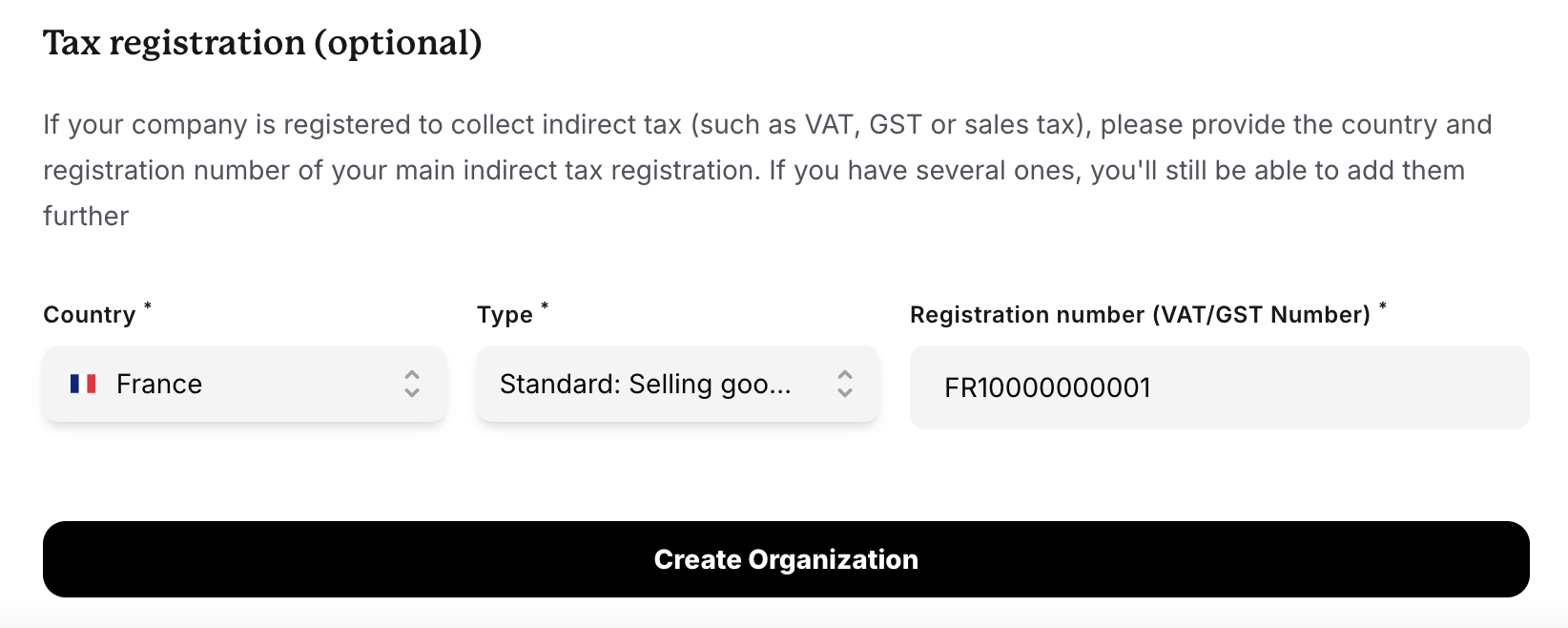
When you first set up your Nocotax account, you'll be prompted to add your tax registrations:
1. Navigate to the onboarding flow
2. Select the countries where you're tax registered
3. Choose the registration type (if applicable)
4. Enter your tax registration number (VAT ID, GST number, etc.)
5. Save your configuration
 ### After onboarding
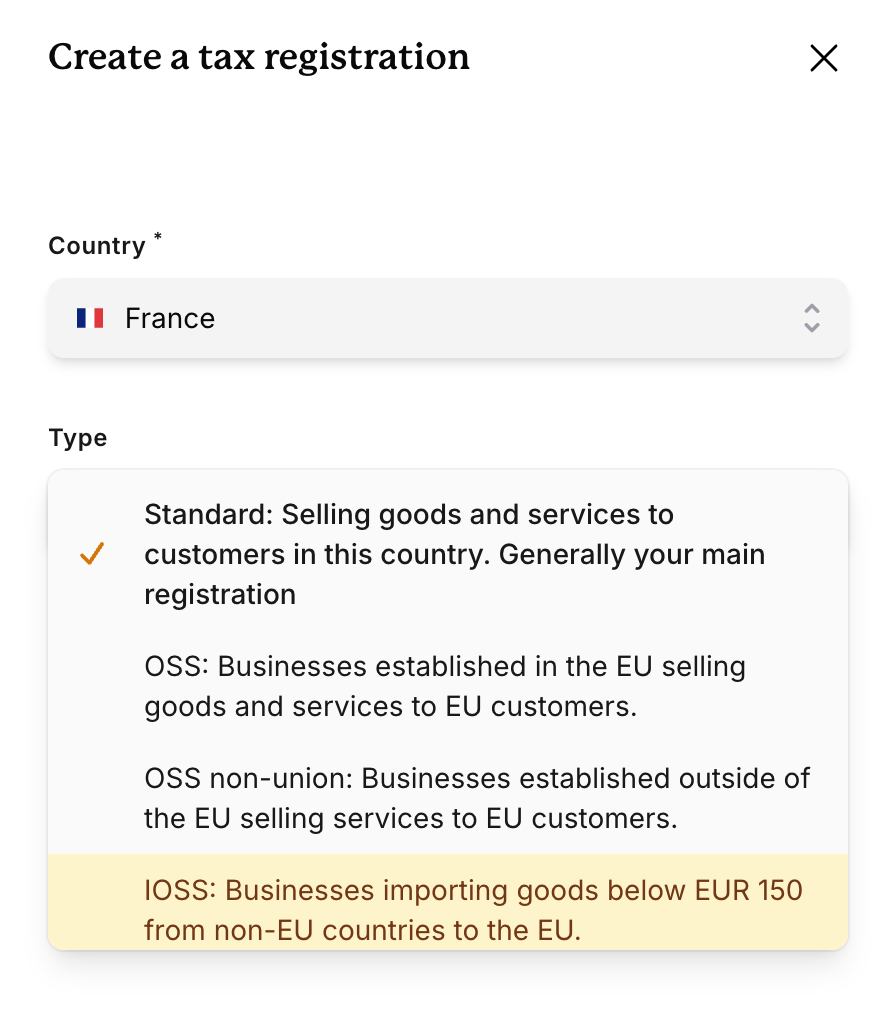
You can update your tax registrations anytime:
1. Go to **Profile Settings** → \*\*Organization \*\*→ **Tax Registrations**
2. Click **Add Tax Registration**
3. Select the country / jurisdiction
4. Choose the appropriate registration type
5. Enter your registration details
6. Save changes
### After onboarding
You can update your tax registrations anytime:
1. Go to **Profile Settings** → \*\*Organization \*\*→ **Tax Registrations**
2. Click **Add Tax Registration**
3. Select the country / jurisdiction
4. Choose the appropriate registration type
5. Enter your registration details
6. Save changes
 Changes to tax registrations take effect immediately for new invoices only. Existing draft invoices may need to be recreated.
## Registration components
Each tax registration consists of:
### Country/Jurisdiction
The country or region where you're registered. This determines which tax rules apply to your transactions.
### Tax Registration Number
Your official tax identification number:
* **EU countries**: VAT number (e.g., DE123456789)
* **UK**: VAT registration number
* **Australia**: ABN (Australian Business Number)
* **Canada**: GST/HST registration number
* **US**: Sales tax permit numbers (varies by state)
### Registration Type
Some jurisdictions require you to specify the type of registration. This is particularly important in the EU (see below).
## Common scenarios
**Situation**: You're a German company selling software subscriptions to consumers across the EU. You have €50,000 in annual EU sales.
**Configuration**:
* **Germany**: Standard registration (your home country)
* **EU-wide**: OSS for EU registration (for sales to other EU countries)
**Why**: The standard registration covers your German operations. OSS for EU allows you to handle all other EU B2C sales through a single quarterly return.
**Situation**: You're a Canadian SaaS company with customers in France, Netherlands, and Sweden.
**Configuration**:
* **EU**: OSS for Non-EU registration (register in one convenient EU country)
**Why**: As a non-EU business, OSS for Non-EU lets you manage all EU VAT obligations through a single registration point.
**Situation**: You operate a marketplace shipping low-value goods from China to EU consumers.
**Configuration**:
* **EU**: IOSS registration
**Why**: IOSS allows you to collect VAT at checkout and clear customs faster, improving delivery times and customer experience.
**Situation**: You're a Spanish business selling handmade goods online. You have €8,000 in annual sales to other EU countries.
**Configuration**:
* **Spain**: Standard registration only
**Why**: Under the €10,000 EU threshold, you can charge Spanish VAT on all EU sales. No OSS needed.
See the FAQ below for more details on the EU small seller scheme.
## Impact on tax calculations
Your tax registrations directly affect how Nocotax calculates tax:
### For Sales Invoices (B2C)
* **With registration in customer country**: Charge local VAT rate
* **With OSS registration**: Charge destination country VAT rate
* **No registration in customer country**: May need to charge your home country rate (depends on thresholds)
### For Sales Invoices (B2B)
* **Customer has valid VAT number**: Typically reverse charge (0% VAT)
* **Customer has no VAT number**: Treated as B2C
### For Purchase Invoices
* **Registered in supplier country**: Can claim input VAT
* **Not registered**: Cannot claim input VAT in that country
Nocotax automatically determines the correct tax treatment based on your registrations, the customer's location, and the transaction type.
## Validation and compliance
Nocotax validates tax registration numbers:
* **EU VAT numbers**: Checked against VIES (VAT Information Exchange System)
* **Format validation**: Ensures numbers match country-specific formats
* **Warning indicators**: Flags potentially invalid numbers
When automatic validation is enabled, Nocotax will warn you if:
* A tax number format is incorrect
* A VAT number cannot be verified in VIES
* Registration details are missing for required jurisdictions
## Frequently Asked Questions
The EU small seller scheme (also called the distance selling threshold) allows businesses with less than €10,000 in annual cross-border B2C sales within the EU to charge their home country VAT rate on all EU sales.
**How to configure in Nocotax**:
* Add only your local country's **standard registration**
* Do NOT add OSS for EU registration
* Nocotax will apply your home country VAT rate to all EU B2C sales
**When to switch to OSS**: Once you exceed €10,000 in annual cross-border EU sales, you must register for OSS for EU and charge destination country rates. Update your Nocotax configuration at that point.
Yes. For example, you can both have a standard registration and an OSS registration in Germany.
The tax treatment depends on several factors:
* **B2B sales**: Typically reverse charge applies (customer accounts for VAT)
* **B2C sales**: You may need to charge your home country rate or register for VAT
* **OSS users**: Can charge destination country rates without local registration
Nocotax will calculate tax based on applicable rules, but you should monitor your sales volumes to ensure you register when required by local laws.
Key decision points:
1. **Are you based in the EU?**
* Yes → Use Standard for home country, consider OSS for EU for other countries
* No → Use OSS for Non-EU
2. **What are you selling?**
* Digital services/software → OSS (EU or Non-EU)
* Low-value imported goods (≤€150) → IOSS
* High-value or local goods → Standard registrations
3. **What's your annual EU B2C sales volume?**
* Under €10,000 → Can use home country standard only
* Over €10,000 → Need OSS or multiple standard registrations
When in doubt, consult a tax advisor familiar with your specific situation.
Yes, you can update your registrations at any time. If you need to update the type of registration, you'll need to recreate a new registration, as only the tax registration number for a given registration can be updated.
It depends:
* If you're registered for VAT in that country and want to claim input tax → Yes, add the registration
* If you're not registered there → No need to add it
Having purchase-only registrations configured allows Nocotax to calculate input VAT you can potentially recover.
## Best practices
Always update your registration numbers in Nocotax immediately when they change. Incorrect numbers on invoices can cause compliance issues and delays in customer payments.
Set a reminder to review your tax registrations every quarter. This ensures you're registered in all required jurisdictions and using the correct registration types as your business grows.
Keep records of when each registration became effective. This helps with historical reporting and ensures you apply the correct tax treatment for different time periods.
Track your sales volumes in different jurisdictions. Set up alerts when you're approaching registration thresholds so you can register before you're legally required to.
When adding new registrations or changing types, test the tax calculation behavior in testmode before applying changes to your livemode environment.
Changes to tax registrations take effect immediately for new invoices only. Existing draft invoices may need to be recreated.
## Registration components
Each tax registration consists of:
### Country/Jurisdiction
The country or region where you're registered. This determines which tax rules apply to your transactions.
### Tax Registration Number
Your official tax identification number:
* **EU countries**: VAT number (e.g., DE123456789)
* **UK**: VAT registration number
* **Australia**: ABN (Australian Business Number)
* **Canada**: GST/HST registration number
* **US**: Sales tax permit numbers (varies by state)
### Registration Type
Some jurisdictions require you to specify the type of registration. This is particularly important in the EU (see below).
## Common scenarios
**Situation**: You're a German company selling software subscriptions to consumers across the EU. You have €50,000 in annual EU sales.
**Configuration**:
* **Germany**: Standard registration (your home country)
* **EU-wide**: OSS for EU registration (for sales to other EU countries)
**Why**: The standard registration covers your German operations. OSS for EU allows you to handle all other EU B2C sales through a single quarterly return.
**Situation**: You're a Canadian SaaS company with customers in France, Netherlands, and Sweden.
**Configuration**:
* **EU**: OSS for Non-EU registration (register in one convenient EU country)
**Why**: As a non-EU business, OSS for Non-EU lets you manage all EU VAT obligations through a single registration point.
**Situation**: You operate a marketplace shipping low-value goods from China to EU consumers.
**Configuration**:
* **EU**: IOSS registration
**Why**: IOSS allows you to collect VAT at checkout and clear customs faster, improving delivery times and customer experience.
**Situation**: You're a Spanish business selling handmade goods online. You have €8,000 in annual sales to other EU countries.
**Configuration**:
* **Spain**: Standard registration only
**Why**: Under the €10,000 EU threshold, you can charge Spanish VAT on all EU sales. No OSS needed.
See the FAQ below for more details on the EU small seller scheme.
## Impact on tax calculations
Your tax registrations directly affect how Nocotax calculates tax:
### For Sales Invoices (B2C)
* **With registration in customer country**: Charge local VAT rate
* **With OSS registration**: Charge destination country VAT rate
* **No registration in customer country**: May need to charge your home country rate (depends on thresholds)
### For Sales Invoices (B2B)
* **Customer has valid VAT number**: Typically reverse charge (0% VAT)
* **Customer has no VAT number**: Treated as B2C
### For Purchase Invoices
* **Registered in supplier country**: Can claim input VAT
* **Not registered**: Cannot claim input VAT in that country
Nocotax automatically determines the correct tax treatment based on your registrations, the customer's location, and the transaction type.
## Validation and compliance
Nocotax validates tax registration numbers:
* **EU VAT numbers**: Checked against VIES (VAT Information Exchange System)
* **Format validation**: Ensures numbers match country-specific formats
* **Warning indicators**: Flags potentially invalid numbers
When automatic validation is enabled, Nocotax will warn you if:
* A tax number format is incorrect
* A VAT number cannot be verified in VIES
* Registration details are missing for required jurisdictions
## Frequently Asked Questions
The EU small seller scheme (also called the distance selling threshold) allows businesses with less than €10,000 in annual cross-border B2C sales within the EU to charge their home country VAT rate on all EU sales.
**How to configure in Nocotax**:
* Add only your local country's **standard registration**
* Do NOT add OSS for EU registration
* Nocotax will apply your home country VAT rate to all EU B2C sales
**When to switch to OSS**: Once you exceed €10,000 in annual cross-border EU sales, you must register for OSS for EU and charge destination country rates. Update your Nocotax configuration at that point.
Yes. For example, you can both have a standard registration and an OSS registration in Germany.
The tax treatment depends on several factors:
* **B2B sales**: Typically reverse charge applies (customer accounts for VAT)
* **B2C sales**: You may need to charge your home country rate or register for VAT
* **OSS users**: Can charge destination country rates without local registration
Nocotax will calculate tax based on applicable rules, but you should monitor your sales volumes to ensure you register when required by local laws.
Key decision points:
1. **Are you based in the EU?**
* Yes → Use Standard for home country, consider OSS for EU for other countries
* No → Use OSS for Non-EU
2. **What are you selling?**
* Digital services/software → OSS (EU or Non-EU)
* Low-value imported goods (≤€150) → IOSS
* High-value or local goods → Standard registrations
3. **What's your annual EU B2C sales volume?**
* Under €10,000 → Can use home country standard only
* Over €10,000 → Need OSS or multiple standard registrations
When in doubt, consult a tax advisor familiar with your specific situation.
Yes, you can update your registrations at any time. If you need to update the type of registration, you'll need to recreate a new registration, as only the tax registration number for a given registration can be updated.
It depends:
* If you're registered for VAT in that country and want to claim input tax → Yes, add the registration
* If you're not registered there → No need to add it
Having purchase-only registrations configured allows Nocotax to calculate input VAT you can potentially recover.
## Best practices
Always update your registration numbers in Nocotax immediately when they change. Incorrect numbers on invoices can cause compliance issues and delays in customer payments.
Set a reminder to review your tax registrations every quarter. This ensures you're registered in all required jurisdictions and using the correct registration types as your business grows.
Keep records of when each registration became effective. This helps with historical reporting and ensures you apply the correct tax treatment for different time periods.
Track your sales volumes in different jurisdictions. Set up alerts when you're approaching registration thresholds so you can register before you're legally required to.
When adding new registrations or changing types, test the tax calculation behavior in testmode before applying changes to your livemode environment.